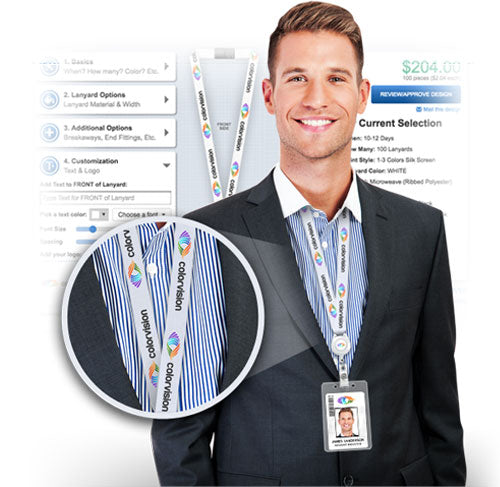

Before choosing an ID card printer, sketch the front and back of the badge you want to issue. A photo, name and company logo may fit comfortably on one side. Add a barcode, return instructions or employee information, and the reverse side can become part of every print job.
Choose single-sided printing when your regular badge design needs only one printed face. Choose automatic dual-sided printing when both faces are part of your normal workflow. Then check the exact printer configuration, supplies and software before ordering.
Start with the badge layout
Make a sample with realistic names, job titles and all required information. View it at the actual card size. If the front looks crowded, decide which items could move to the back before reducing the text size.
- Front: prioritize the photo, name and other details people need to recognize at a glance.
- Back: consider return instructions, a general office contact or a barcode your organization uses.
- Either side: leave the space required by your card technology and design. Test any barcode with the intended scanner before producing a batch.
A two-sided layout can make the information easier to organize. It is worth paying for automatic two-sided production when that layout will be used repeatedly.
When a single-sided printer makes sense
A single-sided printer is a practical starting point when new hires, replacements and routine card batches all use a one-sided design. You avoid buying a capability that your current cards do not need.
The Evolis Primacy 2 Simplex is a current single-sided option available from All Things Identification. It uses direct-to-card printing and offers an upgrade path to double-sided printing. Ask us to confirm the exact upgrade and configuration rather than assuming that capability is already included.
If only an occasional project needs a printed back, discuss that job before purchasing. Do not assume that manually turning cards over is an approved or convenient workflow for every printer, card stock and software combination.
When automatic dual-sided printing is the better fit
If nearly every card has a printed back, start by comparing automatic dual-sided models. The Evolis Primacy 2 Duplex prints both sides automatically, avoiding the separate manual card-flipping step.
That is useful when the operator needs to keep front and back information paired through a recurring batch. Think about the busiest day of your program, not only the average month: an onboarding group or annual badge replacement can make handling time more noticeable.
Do not compare printer speed figures without checking the job behind them. Evolis specifies up to 280 cards per hour for single-sided YMCKO printing and 170 cards per hour for double-sided YMCKOK printing in its Primacy 2 brochure. These are different print jobs, not a promise that every card design will run at the same speed.
Budget for the complete print job
Compare quotes using the same card design and requirements. Include the printer configuration, compatible ribbon, card stock, software and cleaning supplies. If you need encoding or lamination, list those separately so they can be checked.
Tell the supplier whether the back needs color or black text only. Ribbon selection and yield depend on the printer and the job. Our YMCKO versus YMCKOK ribbon guide explains why the panel sequence matters. Do not select a ribbon by its color abbreviation alone.
Five details to include in your printer request
- A sample front and back: use sample data rather than a real employee's private information.
- Typical and peak volume: include routine replacements and your largest planned batch.
- Color requirements: specify color or black-only printing for each side.
- Your existing setup: identify your software, computer operating system and card stock.
- Additional requirements: note encoding, lamination and any likely move to two-sided badges.
Ready to narrow the choice? Compare the Primacy 2 Simplex and Primacy 2 Duplex, or request an ID card printer quote. We can help confirm the configuration, compatible supplies and current availability for your program.
Manufacturer reference: Evolis Primacy 2 features and upgrade options. Product image from the All Things Identification catalog; appearance and included options depend on configuration.